Images and media
Every image you upload is kept in the Media library, so you can use it again on other posts and pages.
Add an image to a post or page
Image fields look like this:

- Drag a file from your computer onto the box, or
- click browse (or Select image) to upload a new file or pick one already in the library.
To change an image, click it and choose another; to remove it, use the remove button on the image.
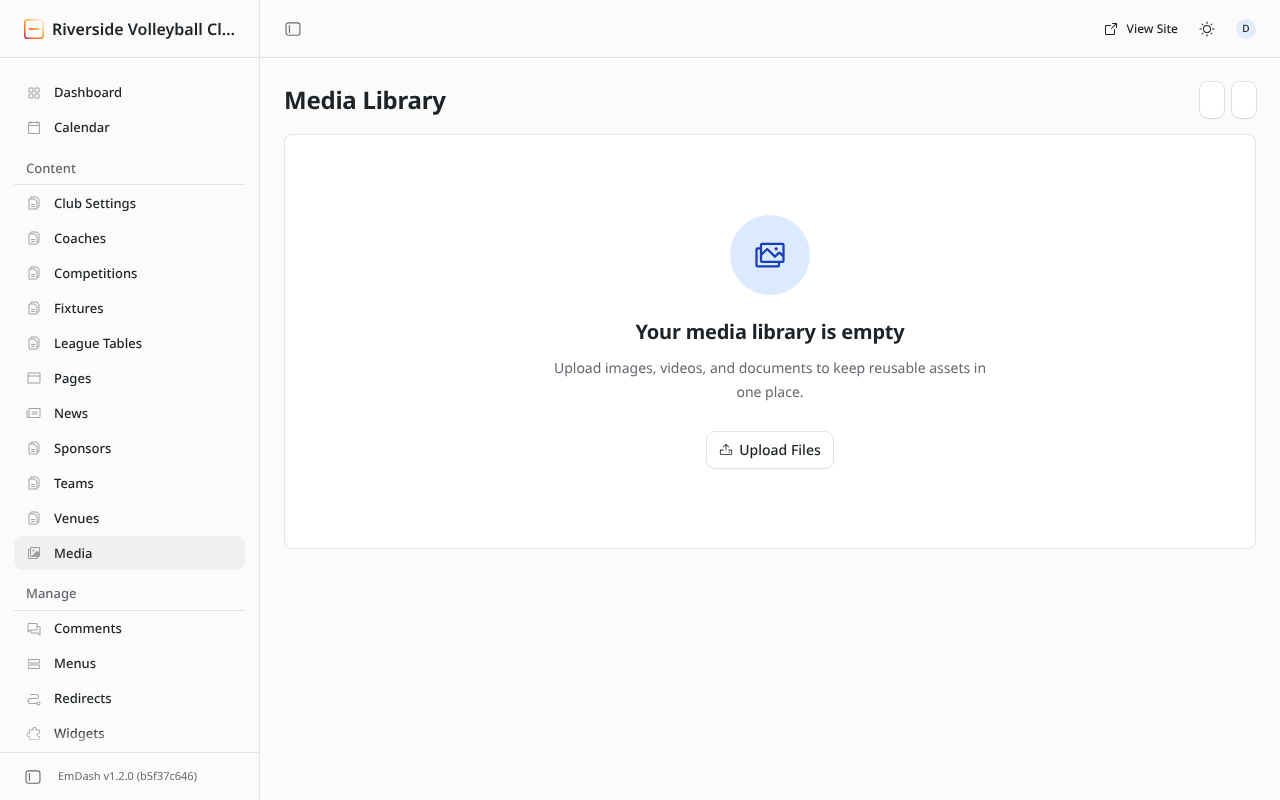
Upload to the library directly
Media → Upload Files, then choose one or more files. New folder keeps things tidy, e.g. one folder per season.
Good images
- Photos: JPEG, ideally around 2000 pixels wide. Bigger files are fine (up to 15 MB): the website makes smaller copies for visitors automatically, so pages stay fast.
- Logos: PNG or SVG, with a transparent background.
- Describe every image (its alt text) when asked: it's read out to people using screen readers, and helps Google.
- Permission: only upload photos you're allowed to use, and follow your club's policy for photos of under-18s.
Replacing an image everywhere
Open the image in Media and use Replace to upload a new file. Every post and page using it shows the new one.
Deleting
Delete an image from Media only when nothing uses it any more, or those posts and pages will show a gap.