News posts
News posts appear on the News page, in the Latest news box on the home page, and in the "Continue reading" band under each post.
Write a new post
-
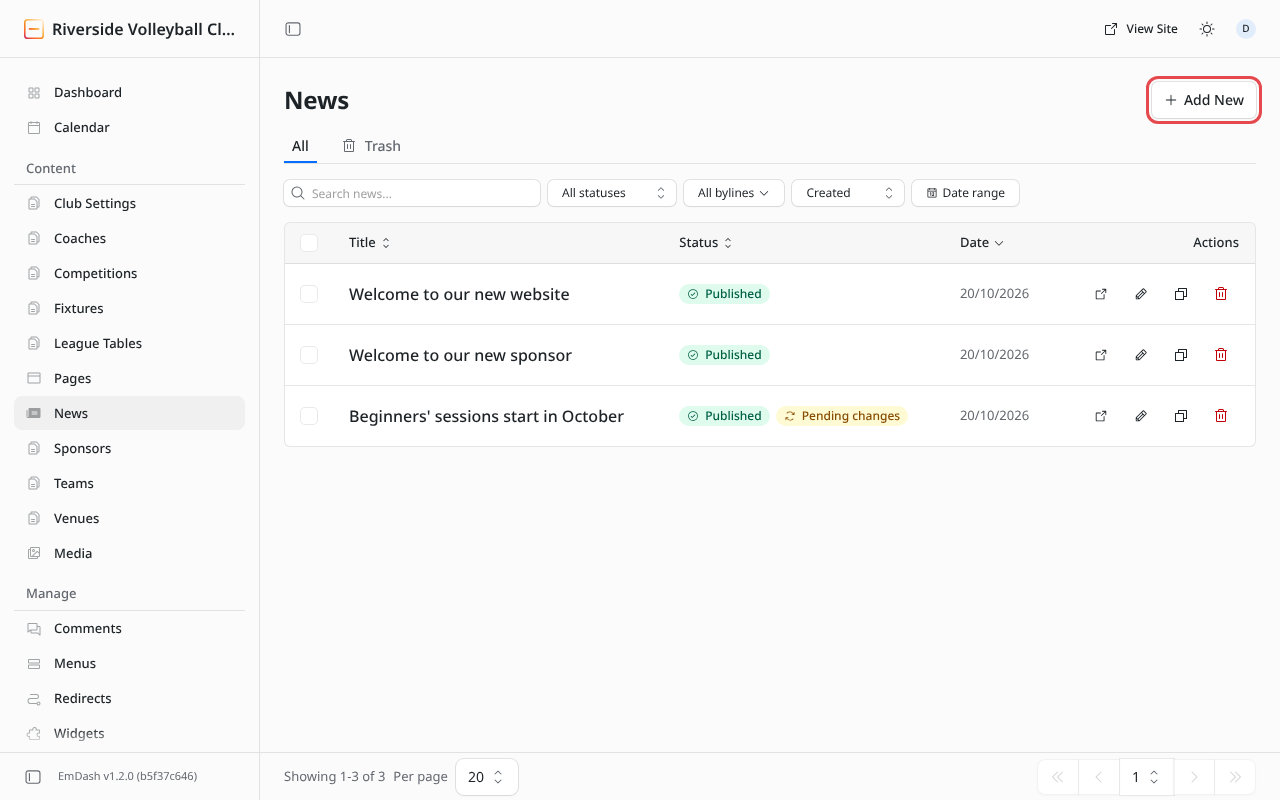
Click News in the left-hand menu, then Add New (or + News post on the dashboard).
-
Fill in the fields:
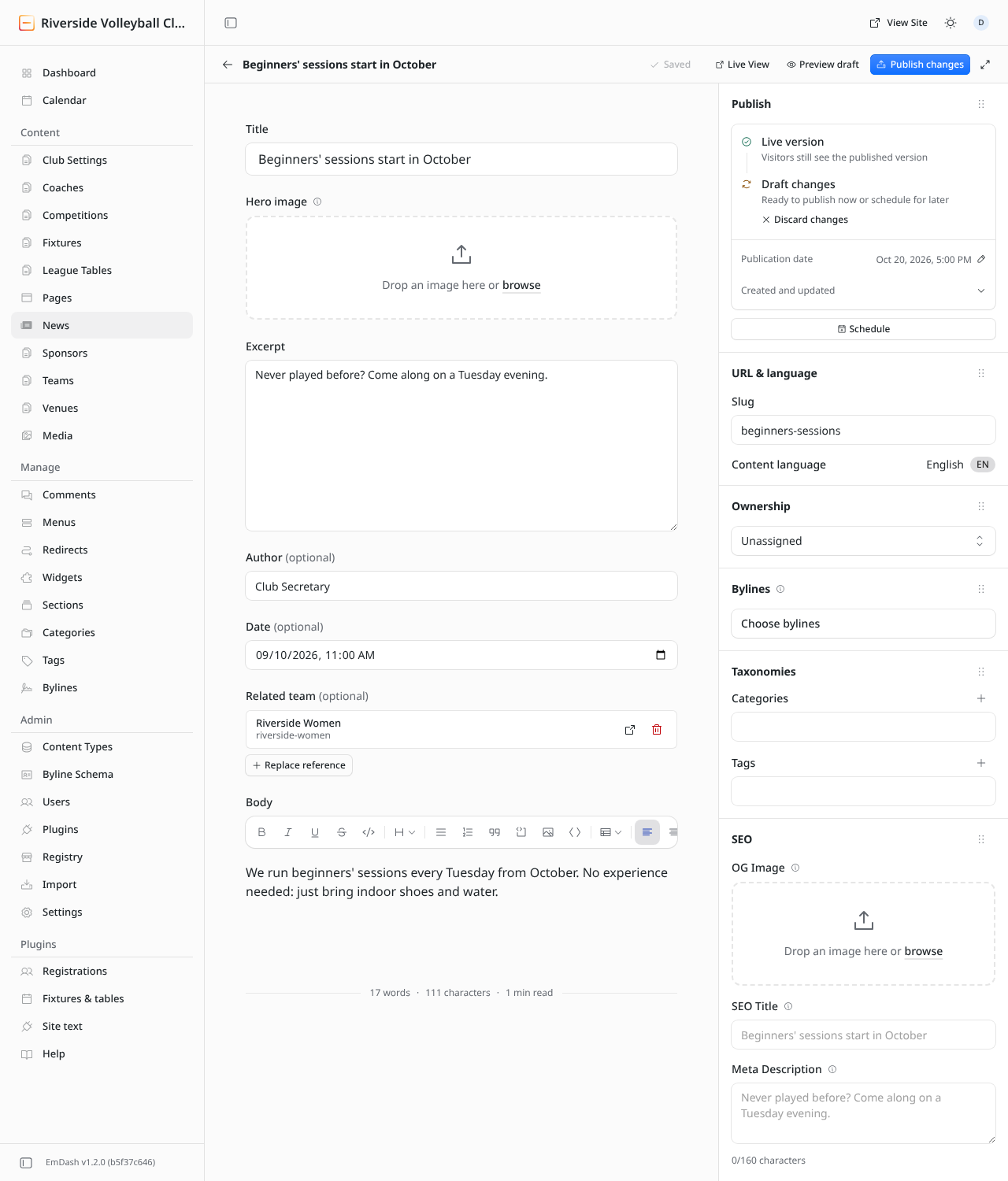
Field What to put in it Title The headline. Keep it short and specific: "Lions win the cup final", not "Great news!". Hero image The picture at the top of the post and on its card in the news list. See Images and media. The whole image is shown, never cropped, so logos and team photos stay intact. Excerpt One or two sentences shown under the title on the post's card in the news list. If you leave it empty, the card shows only the title. Author Shown under the title, e.g. "Club Secretary". Optional. Date The date shown on the post. Leave it empty to use the publication date. Related team Records which team the post is about. Optional; the site doesn't show it to visitors yet. Body The story itself. -
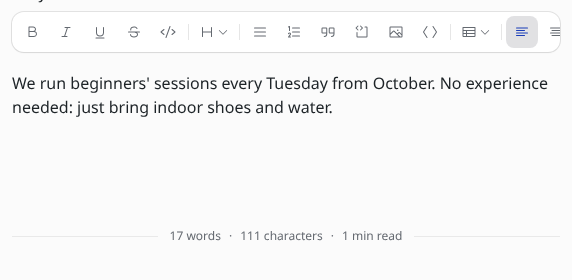
Write the body. The toolbar above it does bold, italics, headings, lists, quotes, links, images and tables. Select text first, then click a button.
-
Check the URL & language panel on the right: Slug is the end of the post's web address (
/news/beginners-sessions). It's filled in from the title; shorten it if you like, using lower-case words and hyphens. Don't change the slug of a post that's already been shared, or old links stop working (unless you add a redirect). -
Click Publish, or Schedule to publish it later. See Drafts, publishing and scheduling.
Writing tips
- Put the most important thing in the first sentence: people skim.
- Use headings (the H button) to break up anything longer than a few paragraphs. They also appear in the Outline panel on the right.
- Add links with the link button. Link to the fixture, the team page or the registration form where it helps.
- Images inside the body: click the image button in the toolbar. Always fill in the image's description (alt text) for people using screen readers.
How the post looks in Google and on social media
The SEO panel on the right controls what search engines and social networks show. All of it is optional: if you leave it empty, the site uses the title, excerpt and hero image.
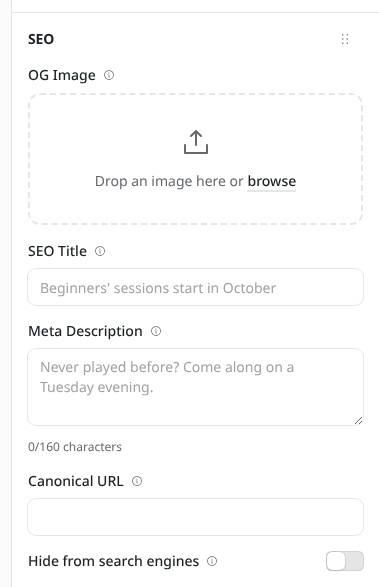
- OG Image: the picture shown when the post is shared on Facebook, WhatsApp or X. Defaults to the hero image.
- SEO Title: the title in Google's results and the browser tab, if you want it different from the headline.
- Meta Description: the summary under the title in Google (up to 160 characters).
- Canonical URL: leave empty.
- Hide from search engines: keeps this one post out of Google.
Categories and tags
The Taxonomies panel lets you add categories and tags. The club website doesn't show them to visitors at the moment, so you can ignore them.
Translations
If your site is in more than one language, a Google Translate panel on the right gives you one-click links to translate each field of the saved English post. Create the translated post from the Content language setting under URL & language. Sites in one language don't need this.