Signing in
The admin lives at your club's web address followed by /_emdash/admin. For example, if your site is https://example-vc.ie, the admin is at https://example-vc.ie/_emdash/admin. Bookmark it.
Your first time
You can't create your own account. An administrator at your club invites you by email (see Users and roles).
- Open the invitation email and click the link in it.
- Follow the steps to finish setting up your account. You'll be asked to create a passkey.
- You land on the dashboard, already signed in.
The invitation link only works once and expires after a while. If it has expired, ask the administrator to send a new one.
Signing in with a passkey
A passkey is the safest way in: there's no password to forget or leak. It uses whatever unlocks your device, such as your fingerprint, face or phone PIN.
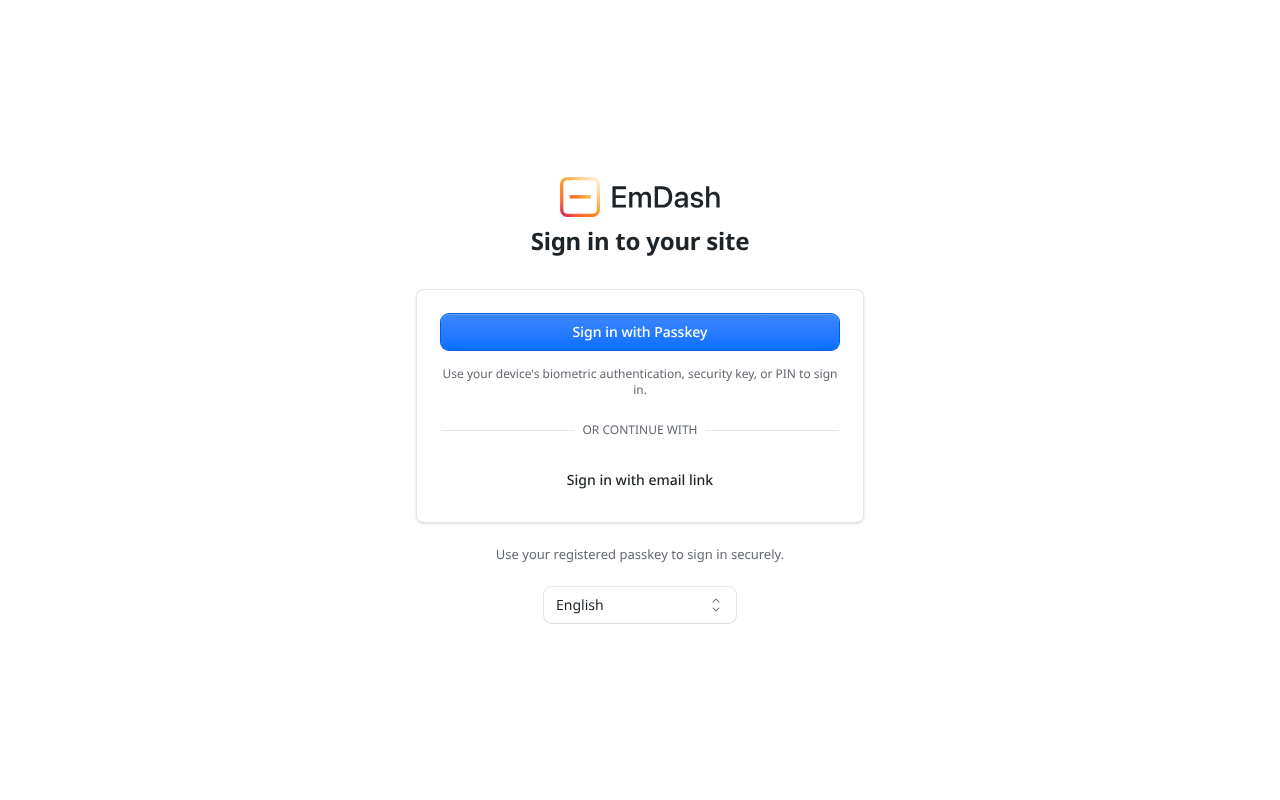
- Go to the admin address.
- Click Sign in with Passkey.
- Confirm with your fingerprint, face, PIN or security key when your device asks.
A passkey belongs to one web address. If your club's site moved to a new address, you'll need to sign in with an email link once and add a new passkey (in Settings → Security).
Signing in with an email link
If you're on a new computer or your passkey isn't available:
- Click Sign in with email link.
- Enter the email address your invitation was sent to.
- Open the email and click the link. It signs you in on the device where you click it.
Not getting the email? Check your spam folder, and that you used the same address the invitation went to. See Troubleshooting.
Adding a passkey for another device
Signed in on a new laptop or phone? Go to Settings → Security and add a passkey there, so next time you can sign in straight away.
Signing out
Click your initial in the top right corner and choose Sign out. Do this on shared or club computers.