Club name, logo and social links
The admin's built-in Settings hold the club's name, logo, favicon, social media links and search-engine settings. Only administrators can change them.
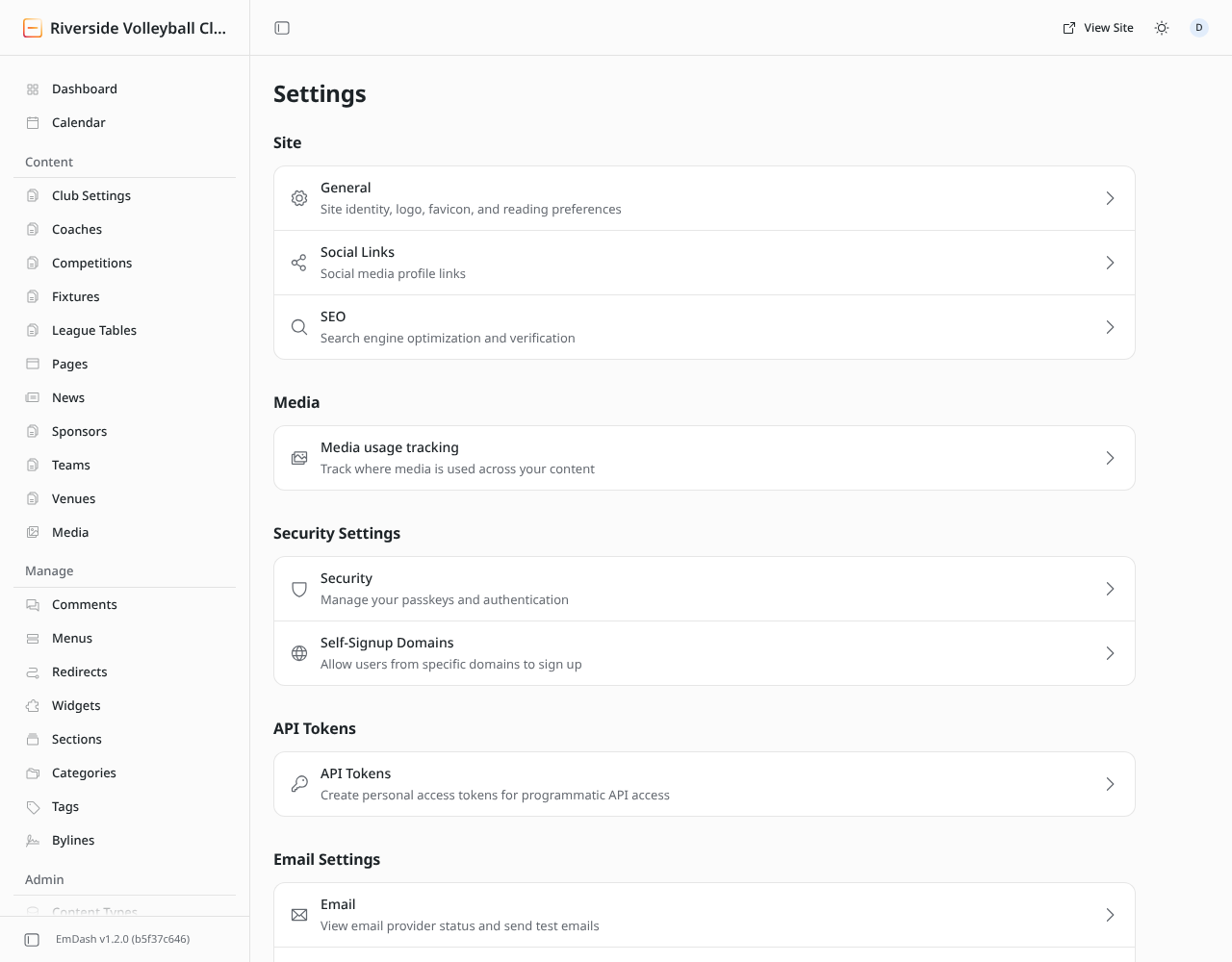
Most clubs only ever need General, Social Links and SEO. Leave the others (Security aside) to whoever looks after the website.
General
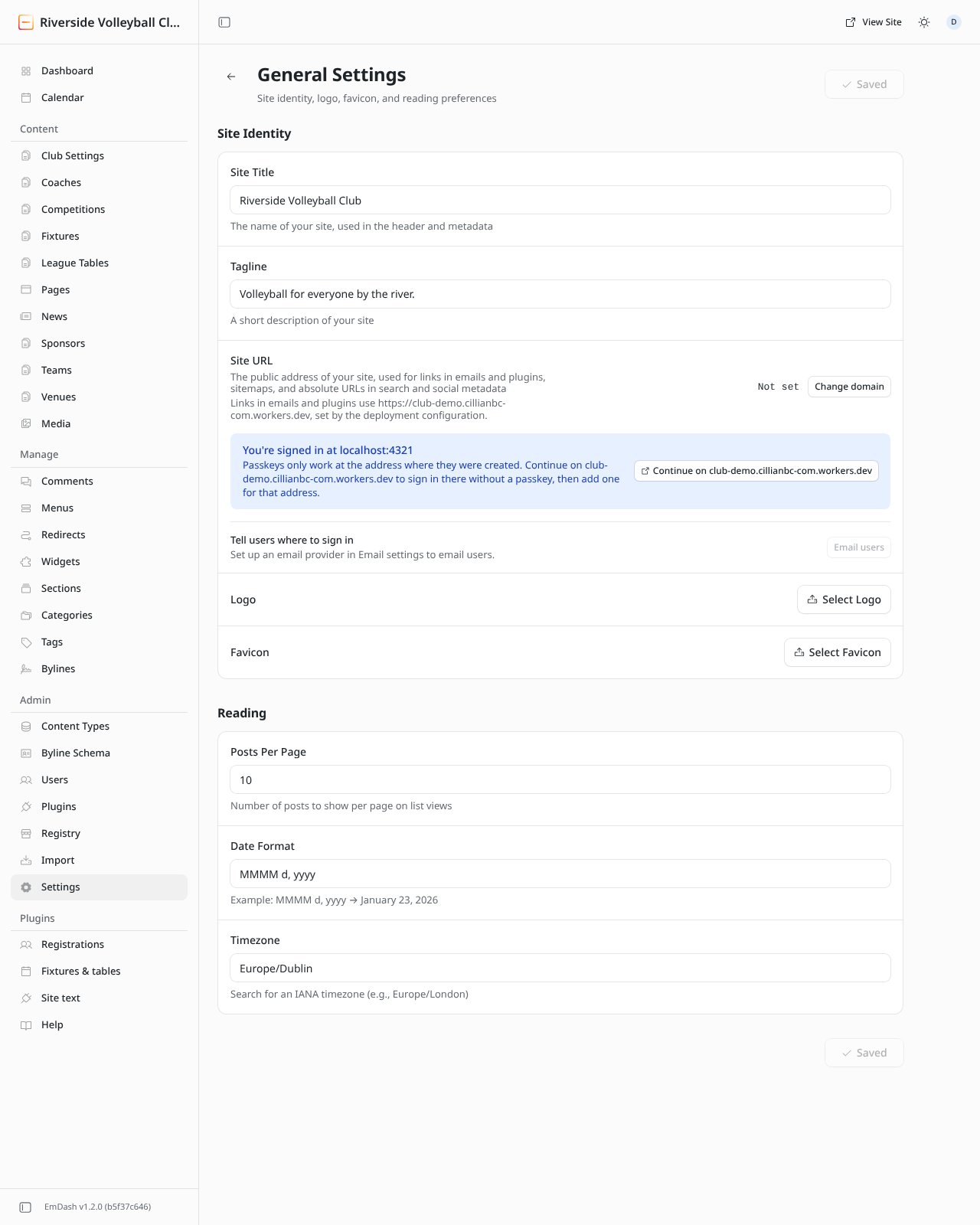
| Setting | What it does |
|---|---|
| Site Title | The club's name, shown in the header, the browser tab and Google. |
| Tagline | Not used by the club website: set the tagline in Club settings instead. |
| Site URL | Set by whoever looks after the website. Leave it alone. |
| Logo | The club crest or logo in the header. A PNG or SVG with a transparent background, at least 200 pixels tall. |
| Favicon | The small icon in the browser tab. A square PNG, at least 96 × 96 pixels. Usually the crest on its own. |
| Reading | Posts per page, date format and time zone. The defaults are fine. |
Settings save as you go: Saved appears at the top right.
The blue box about passkeys in the picture only appears on test copies of the site. You won't see it on your real address.
Social Links
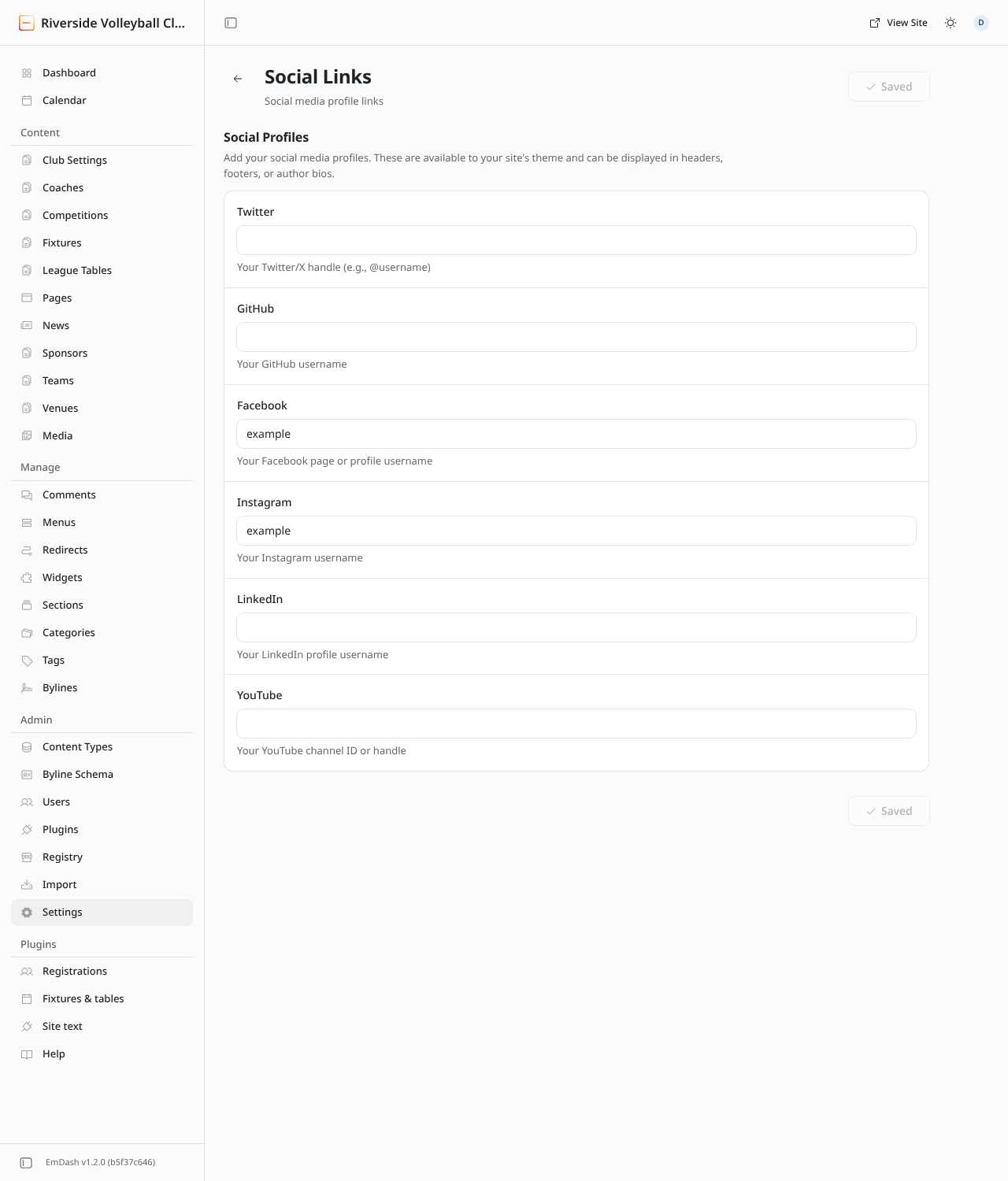
Fill in the club's usernames for Instagram, Facebook, Twitter (X) and YouTube. Each one adds an icon to the footer; leave a box empty to hide that icon. The GitHub and LinkedIn boxes aren't used by the club website. TikTok is in Club settings.
SEO
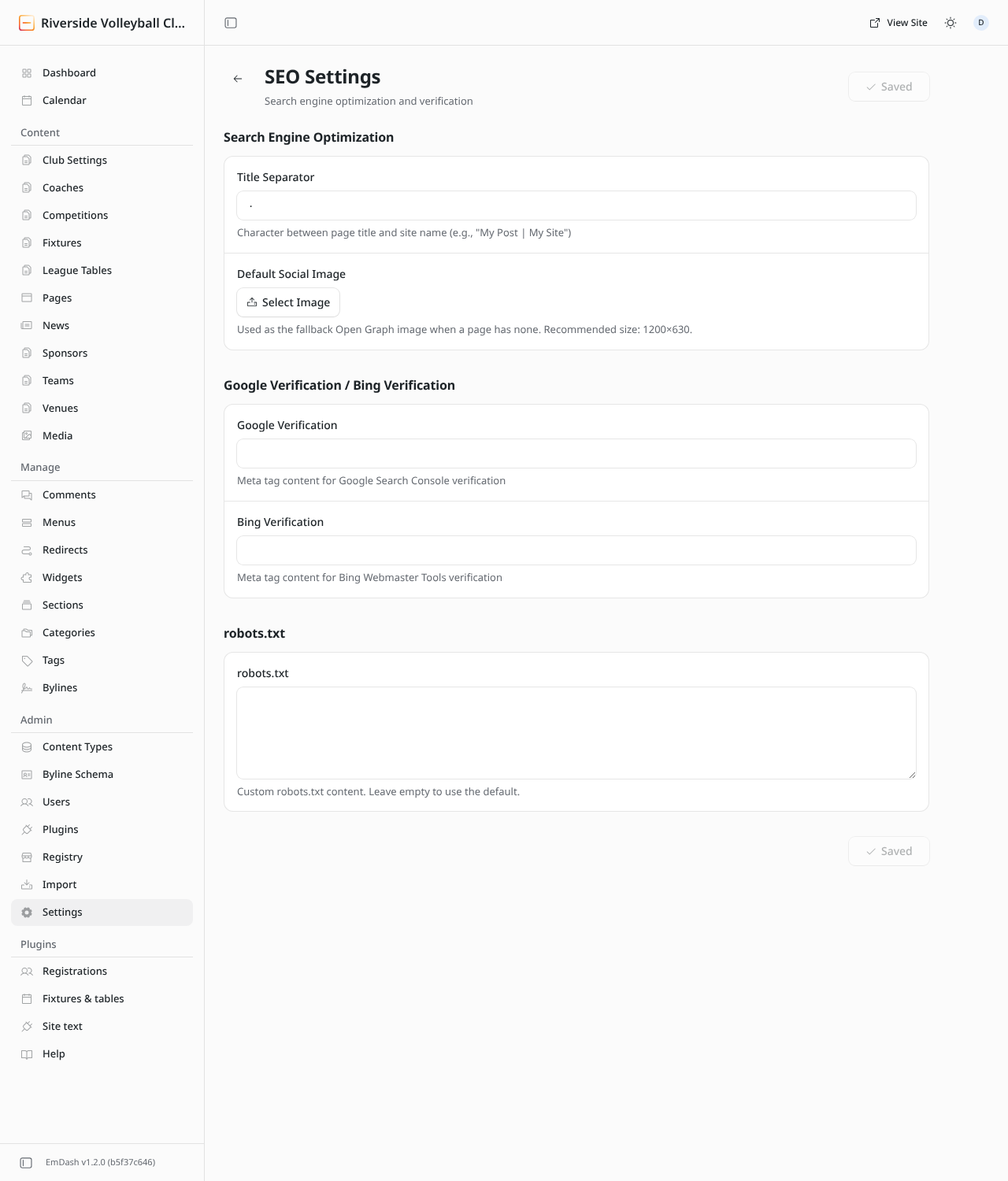
- Title separator: the character between page title and club name in the browser tab, e.g. "News · Riverside Volleyball Club".
- Default social image: the picture shown when a page without its own image is shared on social media. A 1200 × 630 pixel image with the club's name or crest works well.
- Google / Bing verification: codes from Google Search Console or Bing Webmaster Tools, if you use them.
- robots.txt: leave this alone.
To hide the whole site from search engines (for example while it's being built), use Let search engines list this site in Club settings.
Security
Settings → Security is where you manage your own passkeys. See Signing in.